Previous Posts
- Week 8: Good Documentation Pays Off
- Week 7: Wrapping Up the Pilot Experience
- Week 6: One Task at a Time
- Week 5: Building on a Strong Foundation
- Week 4: Choosing a Clear Direction
- Week 3: Designing for Different Users
- Week 2: Organization Improves AI Results
- Week 1: The Importance of Staying Organized
Goal
- Continue working on RuffRide Passenger
Workflow
This week, I continued to work on RuffRide Passenger. The first thing I did was have Claude Design create a UI and color theme for the app. I wanted this to be similar to the iPad version of RuffRide, so I actually just gave Claude Design my RuffRide Pilot project folder to match the UI. I’ve found that Claude Design takes longer than Claude Code and uses more tokens, so I limited my credit usage and saved time by having Claude Code do all the minor tweaks on Claude Design’s output instead of revisiting it directly with Design.
Once that was implemented, I began adding additional content. On the flight forecast page, I added two main things this week. The first thing is a 2D turbulence profile, much like the one I have for the Pilot version. The idea and logic behind it are the same, but the Passenger version is less detailed in terms of color and information. The reason I chose not to include more than one color is to avoid overcomplicating things for the hypothetical passenger.
The next thing I added was a new popup page with information about the forecast. This is accessible by clicking on the Confidence Score for the forecast. This new page contains:
- The Confidence Score with a detailed explanation of how it works
- Time until flight (biggest factor in forecast confidence)
- How the comfort score has changed over time
- A very detailed explanation of how the comfort score is calculated, along with an explanation of why and how the score can move as the flight approaches
With these features implemented, I’ll spend this next week refining small details and making any necessary fixes. I’ll be doing the same with the iPad version. Once the apps are production-ready, I’ll begin working on my final presentation.
Prompts Used
Something new I tried this week that worked very well was feeding Claude Design past project folders for visual context. I’ve done this with Claude Code, and it worked well, so I’m glad it worked successfully with design.
What Worked
Claude continued to benefit from the context and code developed in previous projects. Being able to reference earlier work made it easier to reuse successful approaches and integrate existing functionality into new projects without starting from scratch.
What Didn’t Work
Claude Design can consume a significant amount of compute and tokens, especially on larger projects. This made it important to work efficiently by providing clear prompts, limiting unnecessary iterations, and reusing existing context whenever possible.
Lessons Learned
Work with as much context as you can provide, whether that’s images, PDF files, previous projects, etc.
Images/Video
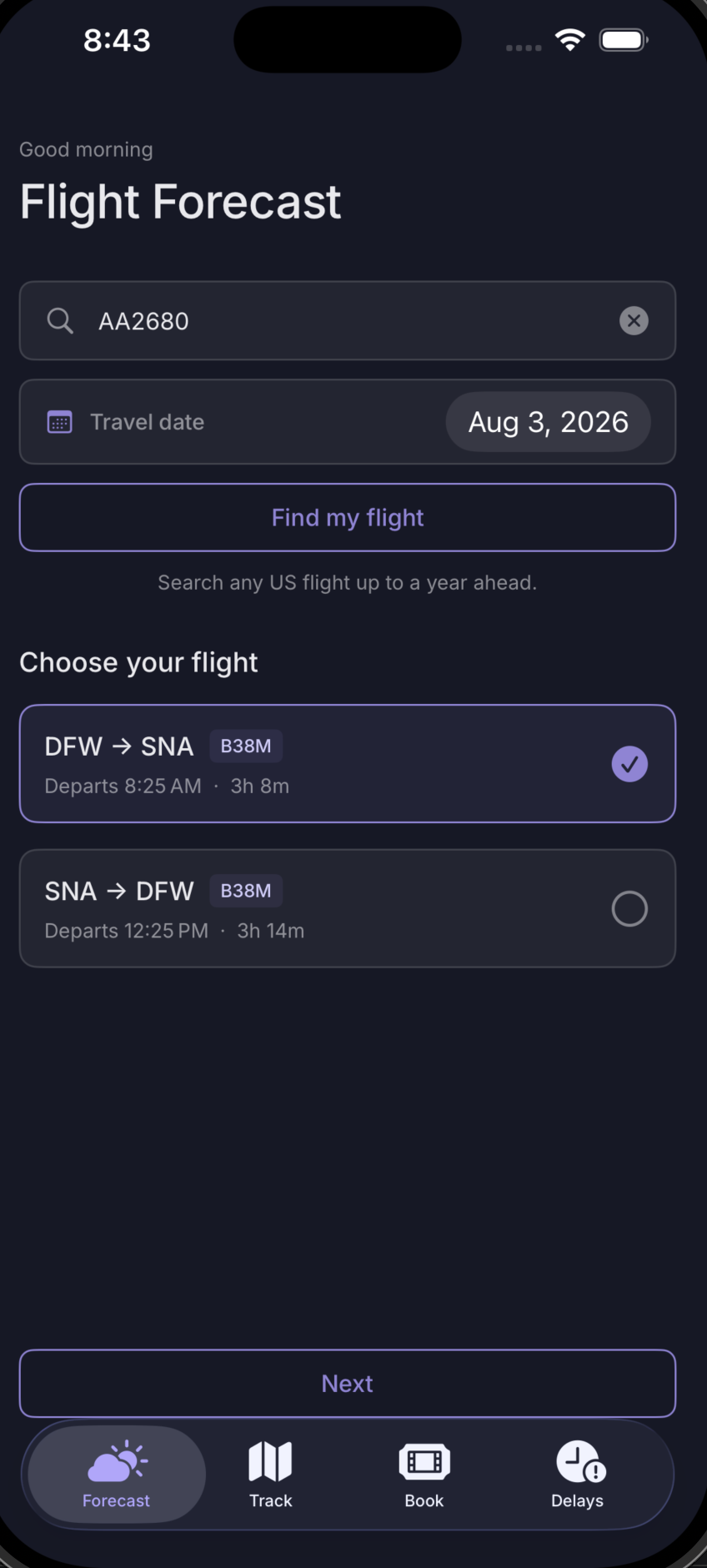
Image 1: Flight Forecast
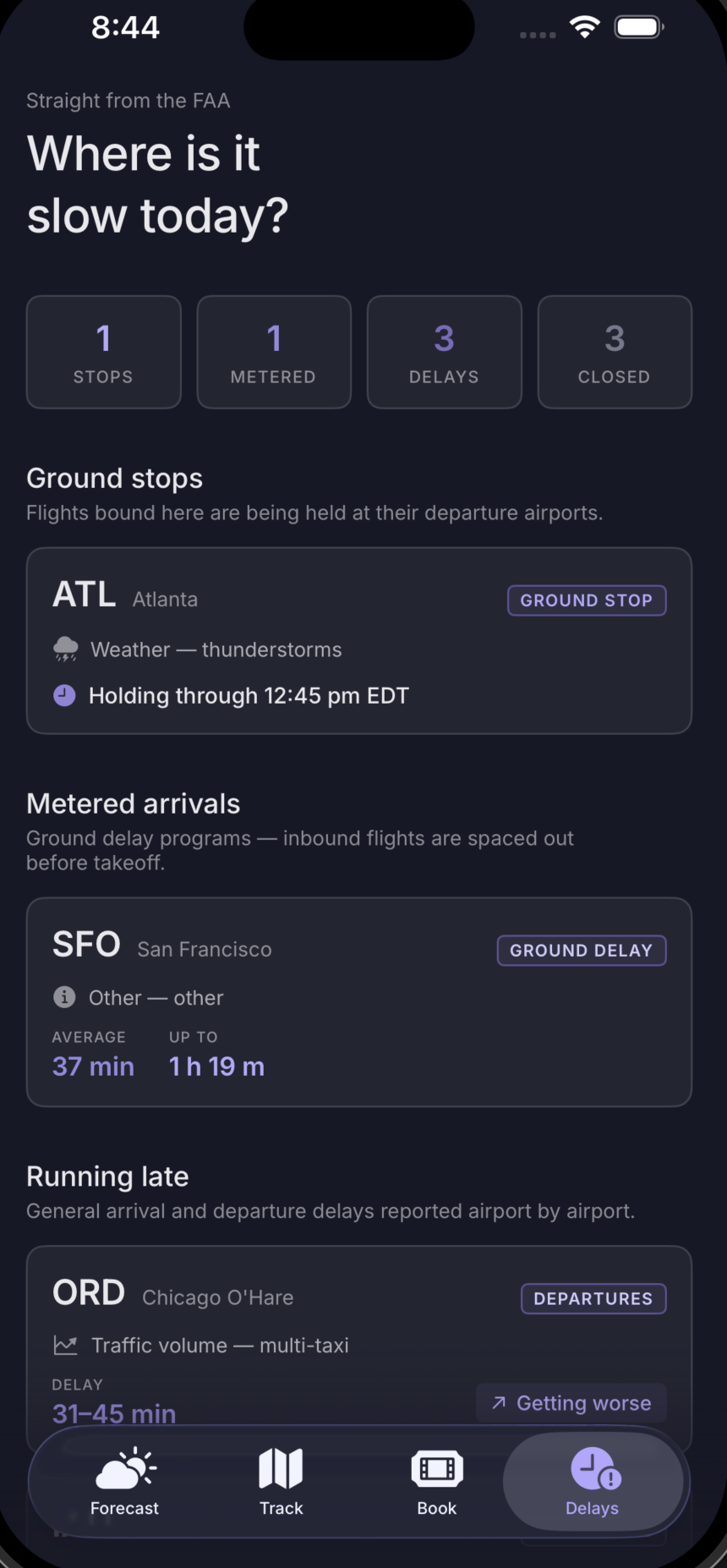
Image 2: Delays

Image 3: Turbulence Profile

Image 4: Forecast Confidence
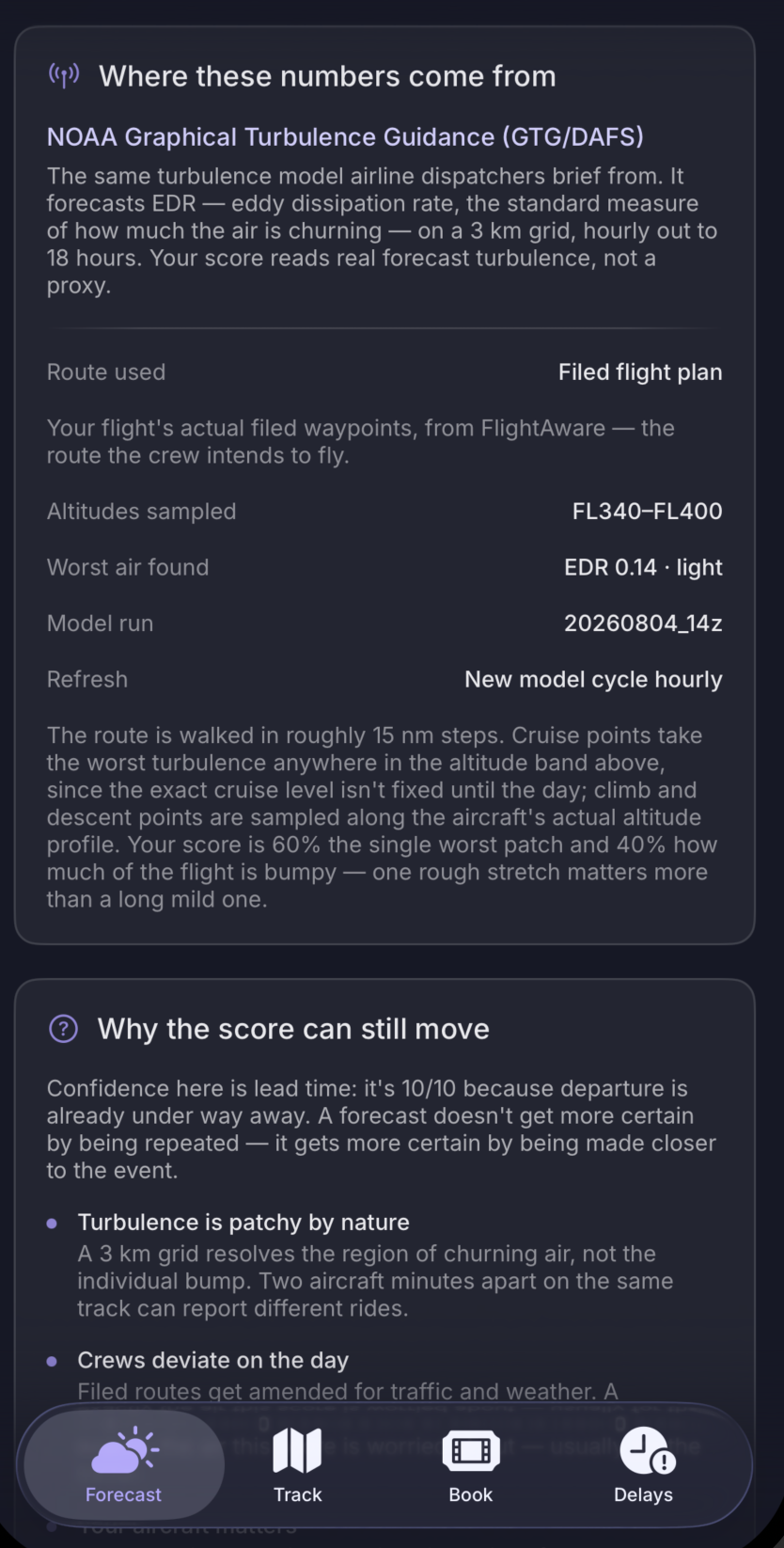
Image 5: Confidence Score Information