Previous Posts
Goal
- Understand why I couldn’t work with TerrierWeb last week
- Create a new prompt in ChatGPT to feed into Claude for an overall project design
- Get a map working from a server on my computer
- Plot both AQI and smoke data real-time overlays
- Use AI to implement the finer details that I want for the dashboard
Workflow
I conversed with some of the other interns to see how they suggested I fix my issues with TerrierWeb. After multiple failed attempts to get a map to plot in VSCode, I decided it would be worthwhile to try re-cloning the repo and starting over. However, after taking note of some suggestions I received at our weekly meeting last Tuesday, I realized I didn’t need to redo that step, and Claude was able to fix it for me.
I was told to have AI write a prompt for me to give to Claude to help build my project. I did this, and Claude gave me a project manual that ChatGPT reviewed and revised to meet my project requirements. Then ChatGPT redirected me back to Claude for the information needed to complete the steps to finish my project.
I was surprised to find that Claude wanted me to start with the same steps I was stuck on last week. It first directed me to VSCode and tried to run my MapLibre example from my cloned TerrierWeb repo. However, instead of trying to run it for me instantaneously, Claude checked every step of the process. It compared my cloned repo with the original version to identify which files did not copy over properly. According to Claude, the reason for this error was an accidental autosave in my OneDrive folder rather than just my Desktop folder. My guess is that CoPilot adjusted that setting while I was using it in VSCode last week, but it could have been an accidental button press on my end. Nonetheless, Claude was able to rewrite those files, so I successfully plotted everything.
Then, Claude gave me options for my next steps. After getting my map running on a server off my computer, I needed to find data on smoke and AQI to plot as overlays on that map. Last week, I obtained a free API key from a company called AirNow and activated it for Claude to plot the 28 weather stations used for these data points. The stations were depicted as small, colored circles corresponding to the assigned AQI values. If you click on the station, a side panel shows which station it is, the time the value corresponds to, the air quality category, and what that category means for breathing and different people groups. The data is real-time and is updated usually every two hours.
Then, I needed my smoke data, as retrieved from the suggested AWS buckets that display RAP data. Claude tested this process by focusing on a single file and plotting it as an overlay on the map. This worked well, and I was able to toggle between smoke and AQI data (if I only wanted to focus on one or the other). However, as with AQI, I wanted my smoke forecast data to auto-update as close to real time as possible (since this is forecast data rather than observation data, the process is different from what I did with AQI). Thankfully, Claude was able to make that adjustment for me, and there is a timeslider corresponding to the different timesteps in the RAP smoke forecast data frames (shown in UTC). This updates every six hours.
I spent my last day focusing on the dashboard’s overall design, adjusting the sizes of the toggle panels and the AQI markers, updating the timestamps, and removing an unnecessary smoke opacity slider that the AI designed for the smoke data. I thought the smoke opacity design was interesting, since I did not include it in my prompt as a feature I wanted my dashboard to have. I almost didn’t remove it, as I thought that it was interesting that AI came up with this, but I also didn’t see a purpose in keeping it there. I took a screenshot of that feature before deleting it.
In total, my project consists of the following:
- A MapLibre foundation from TerrierWeb
- AirNow AQI real-time overlays (from an API)
- RAP smoke data (NOAA data from AWS buckets)
- Toggle on/off features for the data overlays
- Light/dark mode for the map
- Zoom and compass buttons
- A side panel discussing AQI and health properties
- A timeslider (in UTC time) for the RAP smoke data.
You can see a screenshot of the final result in Image 2, shown below.
Prompts Used
As discussed, I originally created a prompt for ChatGPT to feed into Claude, so it can map out a design plan for my dashboard. I gave ChatGPT access to the Smoke & Air Quality shared document containing the project requirements, the TerrierWeb repo, and a brief description of how I wanted my dashboard set up. ChatGPT then generated a prompt for Claude, which returned a tentative architecture workbook to feed back into ChatGPT.
ChatGPT decided it was too complicated for Claude to use everything in the workbook for a two-week project (let alone one week at this point), so I asked Claude to give me step-by-step instructions for the prompt ChatGPT had been given. That’s where Claude redirected me to check my cloned version of the TerrierWeb repo, and I started debugging the issue with my map.
While talking to other interns, I was told to put my project directly into Claude Code or Claude Design to develop right in the platform. I was initially planning to do this, but Claude suggested I go right back into VSCode, where I started, and I was able to use the chat to get code when and where I needed it. I was going to add the final touches by uploading the project to Claude Design to make simple visual adjustments, but I was content with the design Claude originally made, as it was mostly how I envisioned it would look when I made the prompt. I also enjoyed how quick the process ran, everything on VSCode, but I am hoping to try the Claude Design feature for future projects.
It was interesting to see how I could use a single ChatGPT conversation and a single Claude conversation to build my entire dashboard. The process was clean, efficient, and easy to stay on track all week because I didn’t have unnecessary clutter or environments I didn’t need, unlike with Anaconda last week.
What Worked
Surprisingly, this week, everything worked out the way I wanted it to! While I didn’t follow all the initial steps, I found a system that works for my vision for the dashboard, and I am excited about my first AI project. For future projects, I now have a foundation to get started and other development environments to try out as I experiment.
What Didn’t Work
This week went quite smoothly. There were a few “holdups” here and there, with Claude not understanding why something wasn’t working properly (for example, my AQI data wasn’t plotting at first). However, Claude was always able to redirect me to where I needed to go to fix these issues. A couple of times, I had to take screenshots of my Console so AI could see what wasn’t working or if I had a connection issue. However, all minor issues were fixed efficiently, and AI was very helpful in getting me back on track. Overall, it was a productive week, and I experienced little to no issues with my project after I tackled the main issue with TerrierWeb.
Lessons Learned
The main lesson I learned from this project is that it’s okay to ask other interns for advice. In my case, I wasn’t the only one experiencing issues with TerrierWeb, but other interns took a different approach in starting the project than I did. Attending meetings to discuss our project development is super helpful and important. Had I not asked for advice, I could still be at square one, but I now have a great first project!
Images/Video
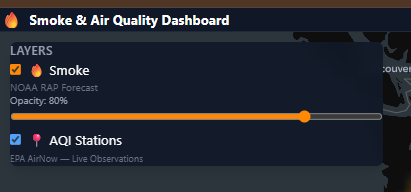
Image 1 (Click to enlarge)
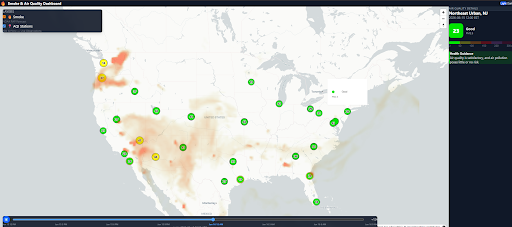
Image 2 (Click to enlarge)